
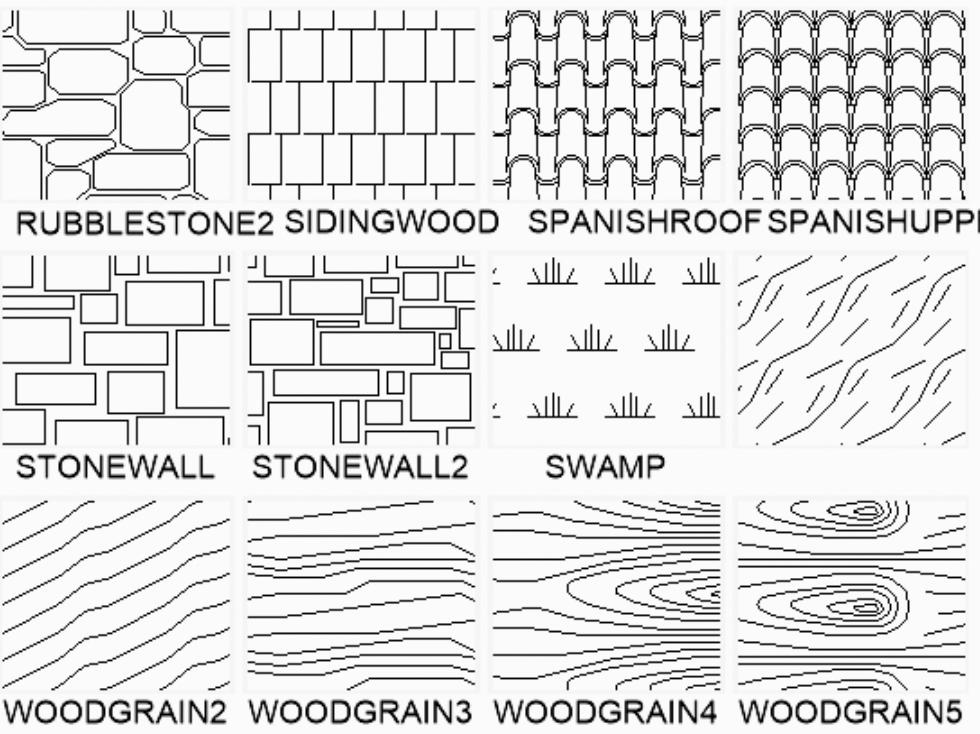
Wood & Stone Hatch Patterns
Are you in the middle of an architectural project and need hatches such as wood and stone patterns? We have replicated the appearance of wood grain and the natural look of stone. These hatch patterns, defined using .pat files, are easy to install, and you’ll be on your way just minutes after downloading them.
We offer over 40 unique wood and stone AutoCAD hatch patterns for all AutoCAD versions, including LT. Each hatch pattern is drawn with high accuracy, to one millionth of a unit.
One of the key advantages of choosing our wood & stone hatch patterns over others is the exceptional support that stands behind them. With over 20 years of experience in the industry, we know AutoCAD inside and out.
We offer free, unlimited phone support to ensure you get up and running quickly with your hatch pattern installation. Rest assured: Your existing hatch patterns will remain intact, while the new wood and stone hatch patterns will be seamlessly added to your hatch dialog’s Custom tab.
What are Hatch Patterns?
Introduction to Hatch Patterns
Hatch patterns are essential tools in computer-aided design (CAD) software. They fill areas with repeating designs that simulate various textures. These patterns are invaluable in architectural, engineering, and product design, providing an accurate representation of materials like wood, slate, and stone.
By using hatch patterns, designers can create detailed and realistic textures that enhance the visual appeal and accuracy of their projects. The patterns can be created using different thread types, such as solid, gradient, and texture threads, each affecting the final appearance of the texture. Whether you’re aiming to replicate the intricate wood grain of hardwood or the rugged texture of stone, hatch patterns are a versatile and powerful tool in your drafting arsenal.
Over 40 Unique Wood Hatch Patterns Plus More
- Fast download and delivery
- Includes a variety of woodgrains, stone walls, paving, and more
- Compatible with all versions of AutoCAD, including AutoCAD LT, Architecture, ADT, Mechanical, and more
- Easy installation with comprehensive instructions
- Runs seamlessly in every version of AutoCAD, including IntelliCAD and Bricscad
Instantly Download These Hatch Patterns
With just a few clicks, you can download these wood hatch patterns and stone patterns immediately after making your payment and efficiently manage the .pat file. The patterns are defined using .pat files, which are essential for creating custom hatch patterns in AutoCAD. These .pat files instruct AutoCAD on how to tile and fill patterns, ensuring that your designs feature precise and consistent wood grain textures.
Whether you are working on a floor plan or a detailed architectural project, these wood hatch patterns for AutoCAD enhance your work. By incorporating these patterns, you can achieve a realistic wood grain effect that adds depth and dimension to your designs. Don’t miss out on the opportunity to elevate your projects with these high-quality wood hatch AutoCAD patterns!
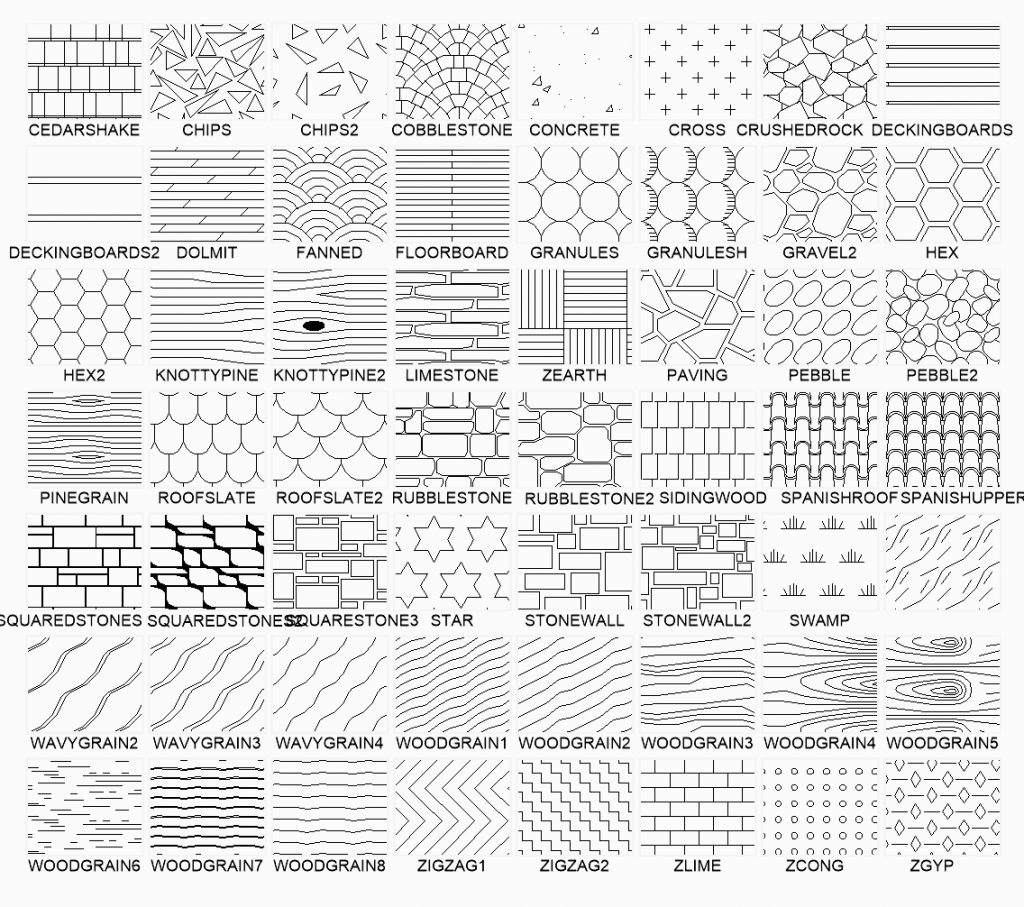
How to Use Wood Hatch Patterns in AutoCAD
Using wood hatch patterns in AutoCAD can significantly enhance the visual appeal of your architectural designs. Here’s a step-by-step example of how to apply a wood hatch pattern and adjust its size using the Properties palette:
- Open Your Drawing: Start by opening the AutoCAD drawing where you want to apply the wood hatch pattern.
- Access the Hatch Command: Type HATCH into the command line or select the Hatch tool from the Draw panel on the Ribbon.
- Select a Wood Hatch Pattern: In the Custom tab, click on the pattern swatch. Browse through the available patterns and select a wood hatch pattern from the palette. When selecting a wood hatch pattern, consider using end grain patterns to accurately represent cut sections of wood in your architectural drawings.
- Apply the Hatch: Click inside the area where you want to apply the wood hatch pattern. The selected pattern will fill the area.
- Open the Properties Palette: With the hatch pattern selected, press CTRL+1 to open the Properties palette. This palette allows you to modify various properties of the selected hatch.
- Adjust the Scale: Locate the ‘Scale’ field in the Properties palette. Enter a new value to resize the hatch pattern according to your design needs. A smaller value will make the pattern denser, while a larger value will spread it out more.
- Finalize the Hatch: Once you are satisfied with the appearance of the wood hatch pattern, press Enter to finalize the changes.
Following these steps, you can effectively utilize wood hatch patterns in AutoCAD to create realistic wood grain textures, enhancing the depth and detail of your projects. Whether you’re working on an elevation or an architectural detail, these hatch patterns can add a professional touch to your work.
Creating Hatch Patterns
Creating hatch patterns allows designers to tailor their designs to meet specific project requirements. In CAD software like Autodesk AutoCAD, users can utilize the “Hatch and Fill” tool to define the properties of their custom patterns. This includes the scale of the hatch abd setting the angle of the pattern. By saving these settings you can ensure hatch patterns you can then reuse then in future projects templates, ensuring consistency and efficiency. These wood grain textures or stone patterns are an indispensable tool for architects and engineers looking to add professional looking detail to their drawings.
Easy to install
Copy and paste the pat file into a Hatch folder on your local drive. Then, add a path to it in the Options settings. This is the conventional AutoCAD method. Detailed instructions on how to install are provided at the time of order.
Remote help available
We also offer free lifetime phone support and remote installs if you encounter problems. Call us today with any questions you might have about our wood and stone hatch patterns. Additionally, you can visit our forum to seek help or find information related to custom hatch patterns and technical questions.
Wood & Stone Hatch Patterns are available now for immediate download
Instantly download these AutoCAD .pat files containing custom hatch patterns for wood and stone. Make your payment and gain immediate access to the wood hatch patterns. These hatch files define the fill patterns and can be easily installed by copying and pasting them into a designated Hatch folder on your local drive. For step-by-step installation instructions, refer to the easy-to-install instructions with your purchase. Make sure to sign in to your account to access the download link immediately after your payment.
Did We Mention Our Dedicated Support?
In addition to providing easy installation instructions, we are committed to exceptional customer support. If you encounter any difficulties, feel free to contact us for free lifetime phone assistance or remote installation services. Contact us today for inquiries regarding our wood and stone hatch patterns.
Hatch Pattern Applications
Hatch patterns have a broad range of applications across various industries. In architecture and engineering, they create realistic representations of materials like wood, metal, and stone, adding depth and detail to floor plans, elevations, and sections. For product designers, hatch patterns are essential for creating detailed drawings of items such as furniture, cabinets, and flooring, ensuring that every element is accurately represented. Beyond these traditional uses, hatch patterns can also be employed to create custom designs, including logos, titleblocks, and other elements, and are versatile for any project. By incorporating hatch patterns, drafters can enhance the quality of their work, making their projects stand out.
Troubleshooting Common Hatch Pattern Issues
While hatch patterns are incredibly useful, users may occasionally encounter issues such as incorrect types, spacing, or angles. To troubleshoot these problems, it’s important to check the properties of the hatch pattern and make necessary adjustments. For instance, if the pattern appears too dense or too wide, adjusting the spacing or scale can help achieve the desired effect. Additionally, importing hatch patterns from reliable sources, such as online resources or design communities, can provide alternative solutions. If issues persist, seeking assistance from online forums or CAD software support teams can be beneficial. These platforms offer a wealth of knowledge and can help resolve any challenges you might face with your wood hatch patterns or other custom designs.
Are you looking to enhance your designs with precise wood grain textures? Our wood hatch patterns are available for immediate download, no matter your location. Enjoy seamless integration, no matter where your project takes you.